Overview View
The overview panel provides several management functions for configuring Juno and cell connections. A sample configuration is shown in the following figure:
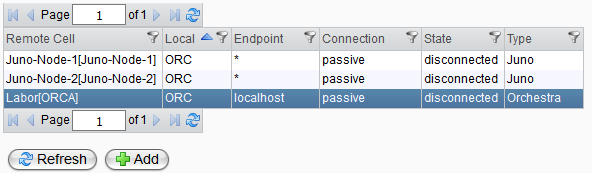
In the overview table, all cloud connections that are currently configured are listed.
| Attribute | Description |
|---|---|
| Remote Cell | The name of the remote cell, generated from the cell and node name. |
| Local | The node name of the local Orchestra node. In the case of a cluster, connections for all cluster nodes will be displayed. |
| Endpoint | The host or IP address of the remote node. |
| Connection | Defines which cell is responsible for initiating the connection procedure. |
passive - Wait for cell connection: If selected, the local node will await incoming connections from other cell nodes. | |
active - Connect to other node: If selected, the local node will be responsible for connecting to the remote cell. | |
| State | disconnected: No connection established between the local and remote node. |
connected: A connection is currently active between the local node and the remote cell. | |
| Type | Defines the type of the cloud connection. |
Juno: The cloud connection is configured for Juno mode. | |
Orchestra: The cloud connection is a traditional cell connection as known from previous Orchestra versions. |
Juno Node Commands
To access the context menu, right-click on a Juno node in the overview table:
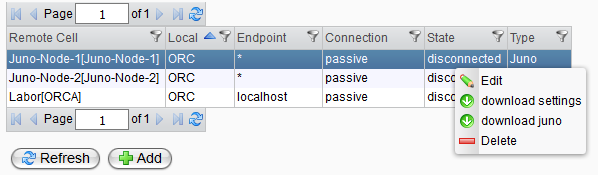
- Edit: Modify the basic settings of the Juno connection.
- Download settings: Download a configuration file to configure a remote Juno instance.
- Download Juno:
Download a Juno binary that includes both the binary and the configuration needed to connect to the Orchestra master.noteSince Orchestra 4.15, the required Juno binary is not shipped by default. Adjust the Environment Setting
image.locationunder Juno/Cloud to point to a valid Juno binary or place it in the preconfigured path. - Delete: Delete the selected Juno connection.
note
If a Juno connection is removed, all remote channels will be transferred back to the local node. Additionally, the channels will be deactivated to prevent failures caused by misleading configuration.
Orchestra Node Commands
If you select an Orchestra node with a right-click, the following context menu will be displayed:
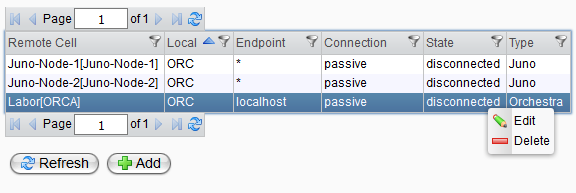
- Edit: Modify the basic settings of the Juno connection.
- Delete: Delete the selected Orchestra connection.